FLUX Outpainting
Extend any image beyond its borders. Set the canvas size and where the original sits, and FLUX Outpainting fills the rest with matching lighting, texture and composition. No prompt needed.
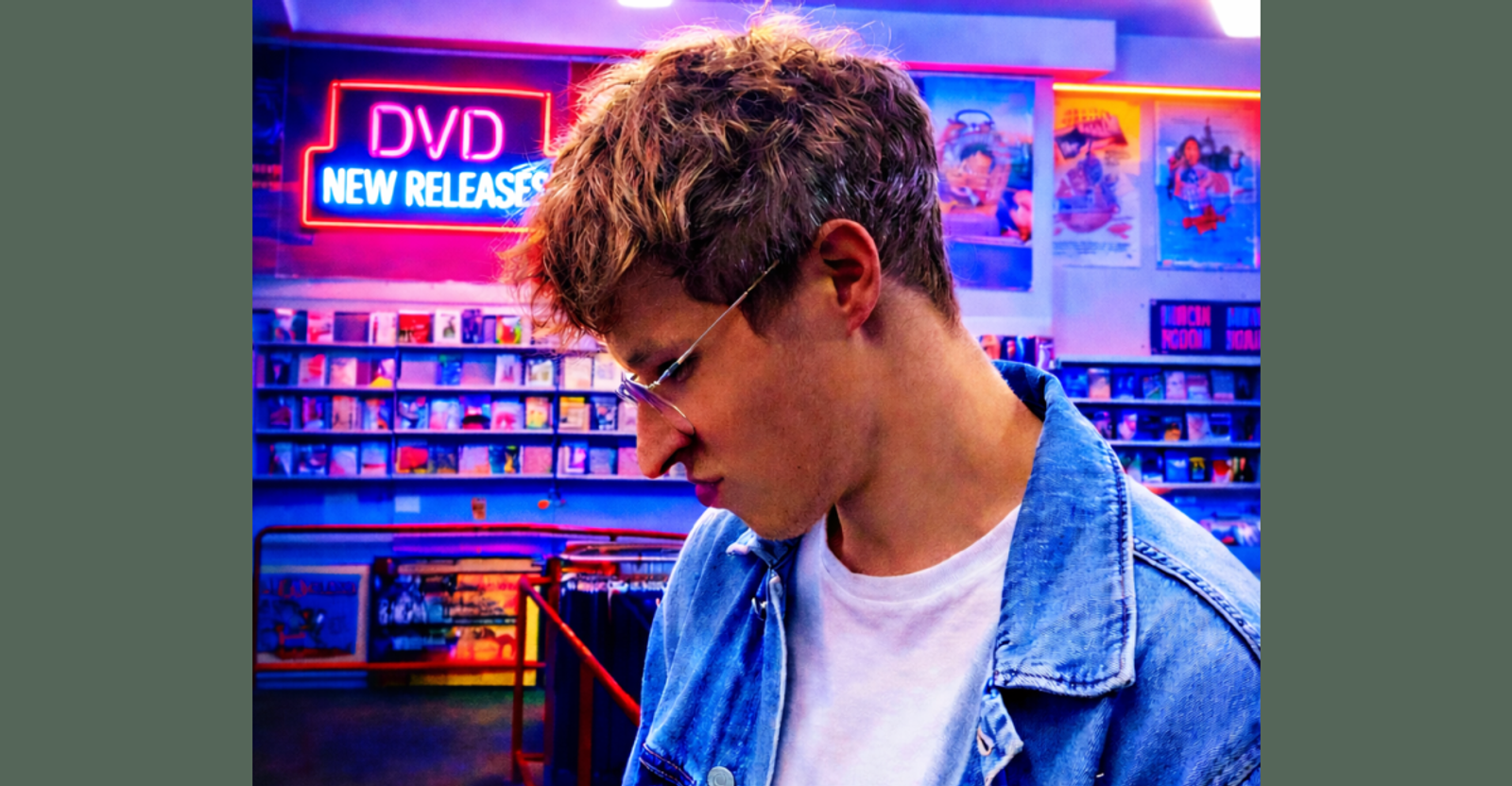
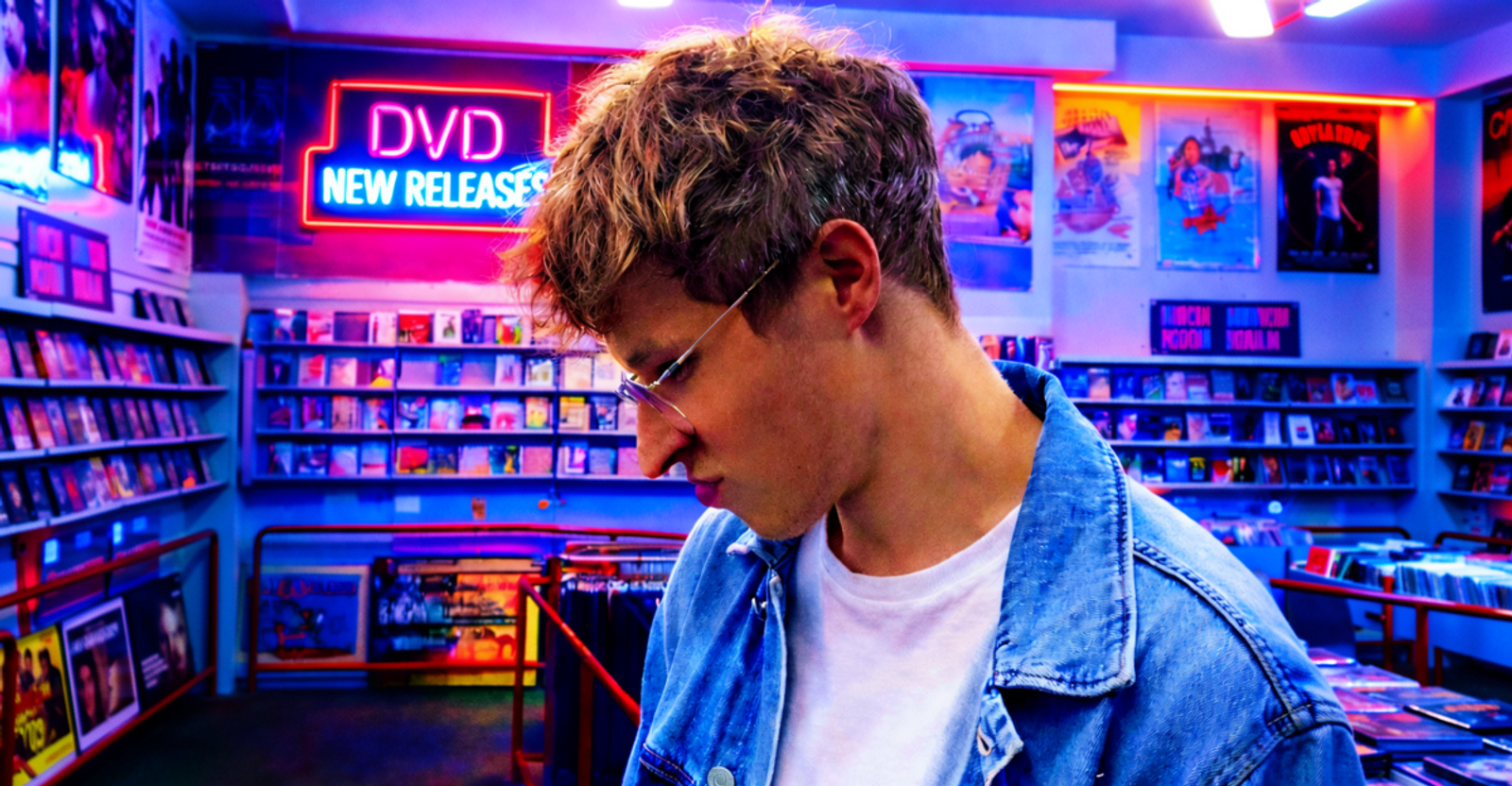
What is AI outpainting?
Outpainting extends an image past its original frame. FLUX Outpainting continues the scene in any direction in a single API call, carrying the lighting, texture, depth and composition through without instruction.
No prompt needed
The model extends the existing scene on its own. Send the image and the canvas, nothing else.
Any direction, any aspect ratio
Choose any canvas within 4 megapixels, for example 2048 × 2048, 2730 × 1536 for 16:9, or 1024 × 4096 for a tall strip.
You decide where the original sits
Set the canvas size and the offset of the original image, or leave the offset empty to center it. The coordinates map straight onto canvas-based editors.
High or fast mode
High, the default, gives the highest fidelity. Fast is significantly faster, with somewhat lower fidelity in the extended region.
What can you use outpainting for?
One source image becomes every format you need, without reshooting or cropping into the subject.
Change the aspect ratio
Turn a square or portrait shot into landscape, or the other way around, without cropping anything out.
Banners from a single image
Widen one image into a banner, with the scene continuing naturally to either side.
Reformat for every platform
Refit the same image to each social media format from one source.
More room in the composition
Give a tight shot space to breathe, or room for copy and layout around the subject.
Is there an outpainting API?
Yes. FLUX Outpainting is an endpoint on the Black Forest Labs API: send the image as base64 with the target canvas size, then poll for the result. You can also try it in the free demo without code.
- Endpoint
- /v1/flux-tools/outpainting-v1
- Input
- One image, as base64
- Canvas
- Any width and height of at least 64 px, up to 4 megapixels in total
- Placement
- Offset of the original on the canvas, centered by default
- Prompt
- Optional; not needed to extend the scene
- Modes
- high (default) or fast
- Output
- PNG (default) or JPEG
- Billing
- Per megapixel of output
Frequently asked questions.
Do I need to write a prompt to outpaint an image?
No. FLUX Outpainting extends the existing scene on its own, so you only send the image, the canvas size and, optionally, where the original should sit.
How large can the outpainted image be?
Up to 4 megapixels of total canvas area, in any aspect ratio within that budget. Requests above that limit are rejected.
Can I choose where my original image sits on the canvas?
Yes. Set the horizontal and vertical offset of the original, including negative values, or leave them empty to center it. If the original would fall outside the canvas, turn on auto-crop.
What is the difference between high and fast mode?
High is the default and gives the highest fidelity. Fast is significantly faster, but may produce lower fidelity in the extended region.
How do I avoid visible seams?
Give the model more canvas around the original image, so it has more room to continue the scene.
How much does outpainting cost?
FLUX Outpainting is billed per megapixel of output, with separate rates for high and fast mode. Current rates are on the pricing page.
See pricingCan I try FLUX Outpainting for free?
Yes. The FLUX Outpainting demo is free to use and needs no code.
Integrate FLUX Outpainting into your workflow
Talk to our team about custom fine-tunes, dedicated infrastructure, and integration support for your product.